

Desktop App
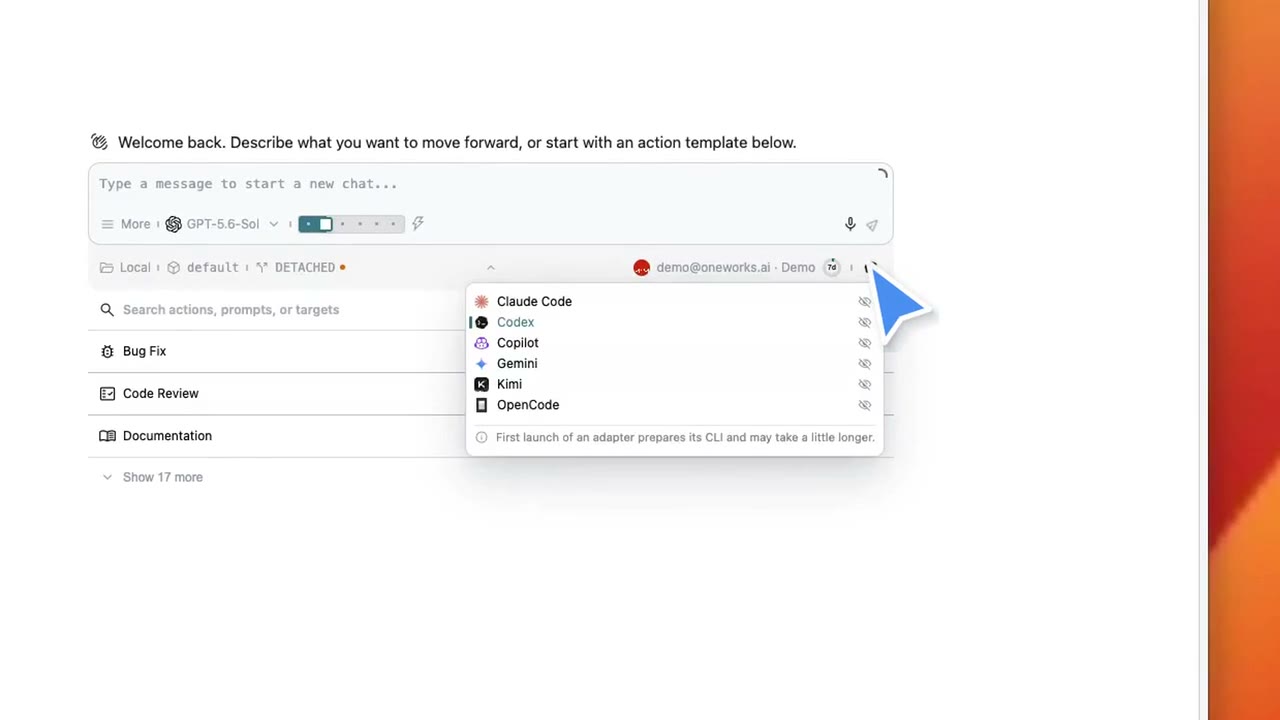
This theme-aware image comes from real desktop windows. To play, pause, or seek through it, open the high-definition demo video on the docs home page.
Desktop records privacy-safe facts for launch start, major stages, user-ready, stable, timeout, degraded, and failed states. Use Help -> Export Diagnostic Support Bundle... when support asks for a bundle; prompts, credentials, project paths, raw logs, and stacks are excluded. See Diagnostics, Telemetry, and Support Bundles for standard OTel export and Admin analysis.
Get an Installer
If you do not want to start from source, install the desktop app directly:
- Download the artifact for
pkg/oneworks-desktop/v*from GitHub Releases. - macOS: Intel (
x64) and Apple Silicon (arm64) each provide.dmgand.zip. - Windows: official installers are not published yet. Follow #161.
- Linux:
.AppImage,.deb, and.tar.gz.
Current desktop builds are unsigned by default. macOS may show a first-launch security warning.
Desktop installers bundle and enable OneWorks Relay, In-App Browser Control (IAB), Browser Control, and Computer Control - CUA by default. They remain available in an empty workspace without depending on a source checkout's node_modules or project plugin configuration, while project configuration may still disable or override them explicitly. The External Control settings group hosts external browser pairing and CUA behavior. IAB controls only OneWorks in-app browser tabs. Browser Control currently supports Chrome only and requires explicit browser pairing before extension capabilities can be used. Computer Control - CUA still requires the necessary macOS Accessibility and Screen Recording permissions.
Project Selection and Multiple Windows
The desktop app always works inside a workspace. When launched without a project, it asks you to choose a recent project or open a directory.
When started from a project directory with:
npx oneworks appthe current directory is passed as the workspace.
Runtime behavior:
- Re-running
bootstrap appin the same directory focuses the existing project window. - Running it from another directory starts a separate service for that project in the same desktop process and opens another project window.
- Each project service has its own server port and runtime state.
Connection Model
The desktop shell starts or connects to a project service, then renders the Web UI against that service. The desktop app is responsible for project window management, native menus, launcher entry points, and platform integration. The chat session, terminal view, plugin UI, configuration pages, and runtime APIs are still served by the project service.
Runtime Boundary
- Desktop preferences such as launcher shortcuts, icon style, and module update channels are stored in the global config
desktopsection. - The separate Themes page uses a direct list and exposes only the tabs registered by installed theme plugins. The default theme is view-only; when the China Edition Theme plugin is installed and enabled, it groups base color, ordinary component layout, component-specific, and playful banner overrides into separate tabs. Numeric padding and icon-size overrides expose both their enable state and a read-only px preset. Disabling the plugin falls back to the default theme without deleting its saved settings.
- App appearance preferences, including theme packs, primary color, theme mode, and chat history timeline display, are stored in the global config
appearancesection and apply across workspaces. A theme pack may provide its own primary color; while it is active, the Appearance color control is read-only and the runtime uses the pack color without overwriting the savedprimaryColor. Switching back to the default theme restores that saved color. - Recent projects are stored in Electron
userDataas runtime state. - Project configuration, rules, skills, plugins, sessions, and adapter accounts are still resolved from the selected workspace and project home.
- On desktop, module management covers the active client, server, adapters, and plugins; the Web shell is managed only by an integrated Web host. Updates take effect after the relevant runtime restarts.